
Enabling a True Dark Mode in Visual Studio 2010, 2012, and 2013
When Visual Studio 2010 was released three years ago, I demonstrated to some colleagues how a dark mode would be a great addition. Soon after, theme plugins became available that allowed us to customize the look of Visual Studio.
Studio Styles already provides many wonderful color schemes that let you customize your theme. These themes also work in WebMatrix 2, which has an excellent theme plugin developed by Yishai Galatzer.
Visual Studio 2012 introduced a native dark mode, allowing configuration without the need for external plugins. In this post, I will show you how to utilize the system-wide high-contrast dark theme in Windows 7 and Windows 8 to achieve a complete dark mode experience.
A few months ago, I discussed a performance issue where WebMatrix 2 was running slowly. It runs much better when using a Windows 7 high-contrast dark theme. To enable this, right-click on the desktop, select Personalize, and choose one of the High Contrast themes at the bottom of the window. This setting simplifies rendering and can make UI performance slightly faster.
Once enabled, you might notice that Visual Studio's default color rendering breaks. To fix this, you can import a custom theme from Studio Styles. After importing, it will render correctly, as shown below:
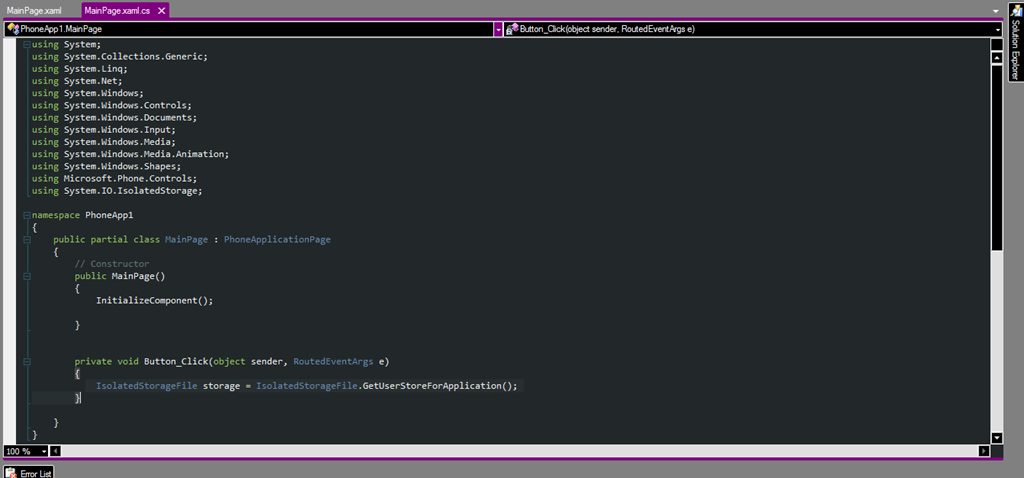
This screenshot shows the visual results in Visual Studio 2010 Express for Windows Phone. Newer versions like Visual Studio 2012 and 2013 will behave the same way. As you can see, the entire Visual Studio interface is now dark. While browsers like Firefox and Internet Explorer might not fully adapt to the black theme, you can use Google Chrome, which handles system-level dark settings nicely without rendering issues.
If you benchmark it, you should notice that editor loading times and UI operations feel faster.
Note: This is experimental. Be sure to back up your settings before applying a new theme. The primary goal of this setup is to improve Visual Studio's performance. If you have any trouble or suggestions, please leave a comment.
Thanks for reading! 