
How to Use the Diagnostic Tools Window in Visual Studio 2015 to Measure Execution Time
With the release of Visual Studio 2015, Microsoft introduced an extremely useful feature: the Diagnostic Tools debugger window.
Typically, when developers compare the performance of two different functions, they use the Stopwatch class or third-party profiling packages to measure execution times. Starting with Visual Studio 2015, you have a built-in option to easily inspect execution times directly inside the IDE.
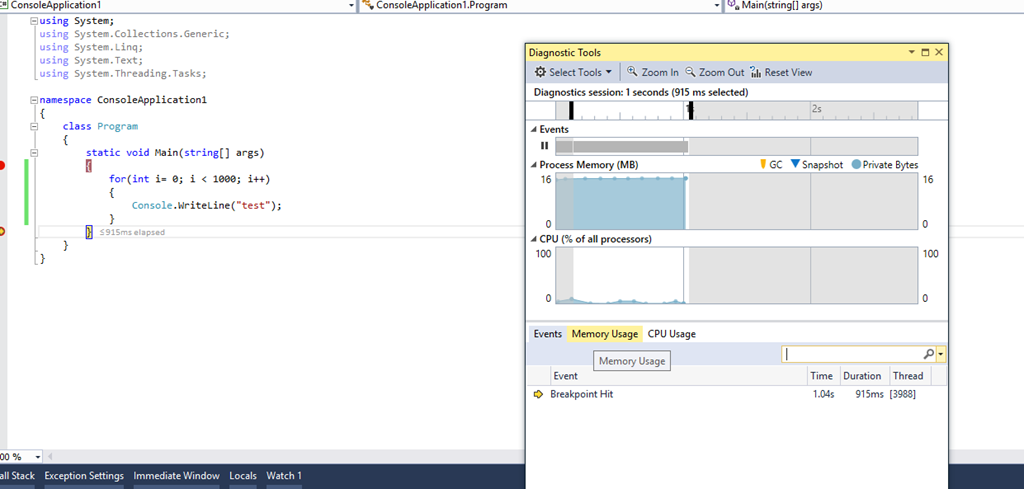
To use it, open the Diagnostic Tools window, set a breakpoint at the start of your code segment, and another one at the end. When you debug and step through or run to the next breakpoint, the Diagnostic Tools window will display exactly how many milliseconds the execution took between the two breakpoints, as shown in the screenshot.
For more details, check out the official announcement by the Visual Studio team: Diagnostic Tools debugger window in Visual Studio 2015.